Prepare your workflow brief, then create an account and start your 7-day free trial. Give the brief to Component.app AI, test the generated portal, and publish it to your live URL and custom domain.
01 · Step 1
What should you know about prepare Your Workflow Brief?
Component.app AI works best when it has a clear picture of how your client process should run. Start with a simple brief covering the journey, users, permissions, records, pages, rules, exceptions, integrations and acceptance tests. Plain language is perfect—there is no need to write a technical specification.
- The client journey from trigger to completion
- Every user role and what it may see, change or approve
- The records, statuses and sources of truth
- Required pages, rules, integrations and test scenarios
02 · Step 2
What should you know about start Your 7-Day Free Trial?
Create your Component.app account and sign in. From the platform, start the seven-day free trial to open the app editor.
03 · Step 3
What should you know about give Your Brief to Component.app AI?
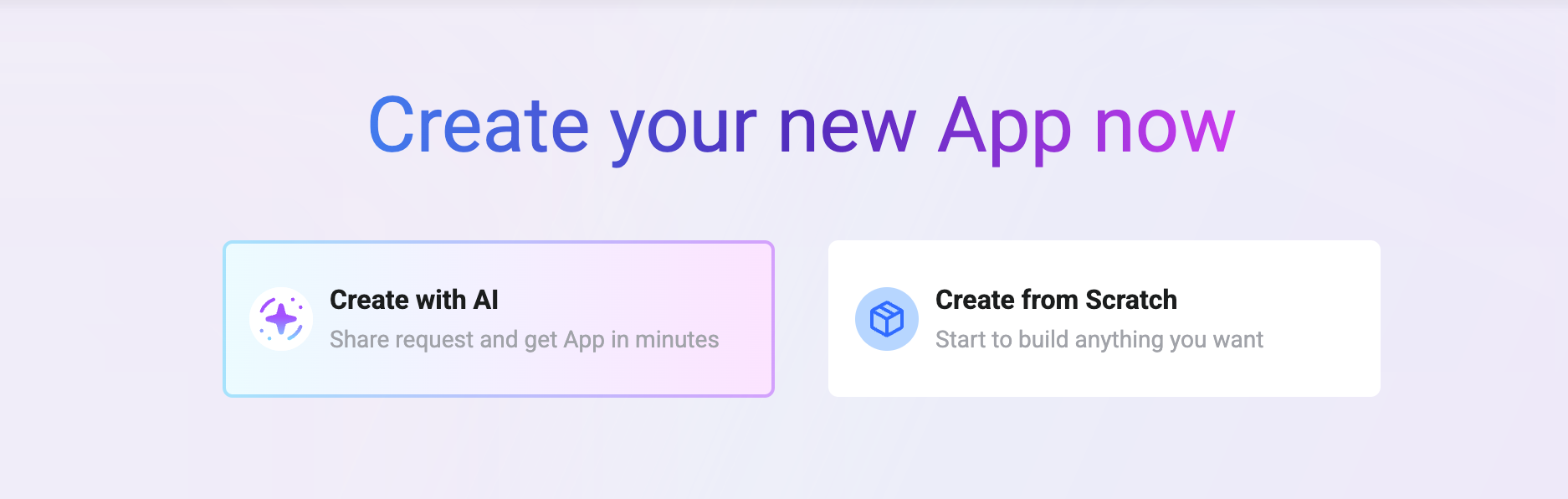
Open the Component.app editor and describe the portal you want to build.
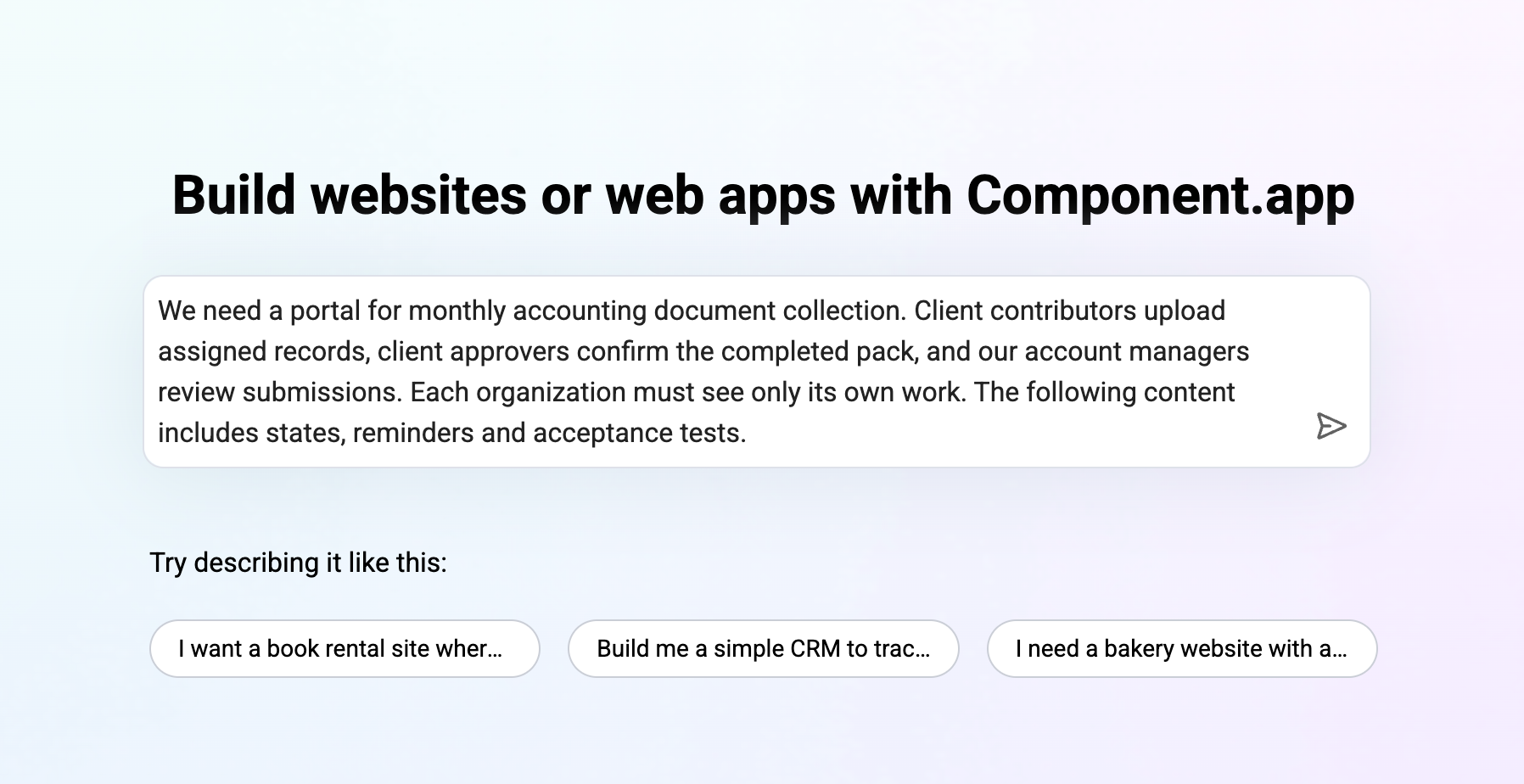
Add brand references and sample terminology when available. The AI may ask a few follow-up questions before it starts building.
04 · Step 4
What should you know about get Your First Working Version?
Component.app AI creates the connected application: the client-facing UI, internal management pages, database structure, authentication, user roles, permissions and workflow logic. It also connects page actions to records, statuses and the next internal response.
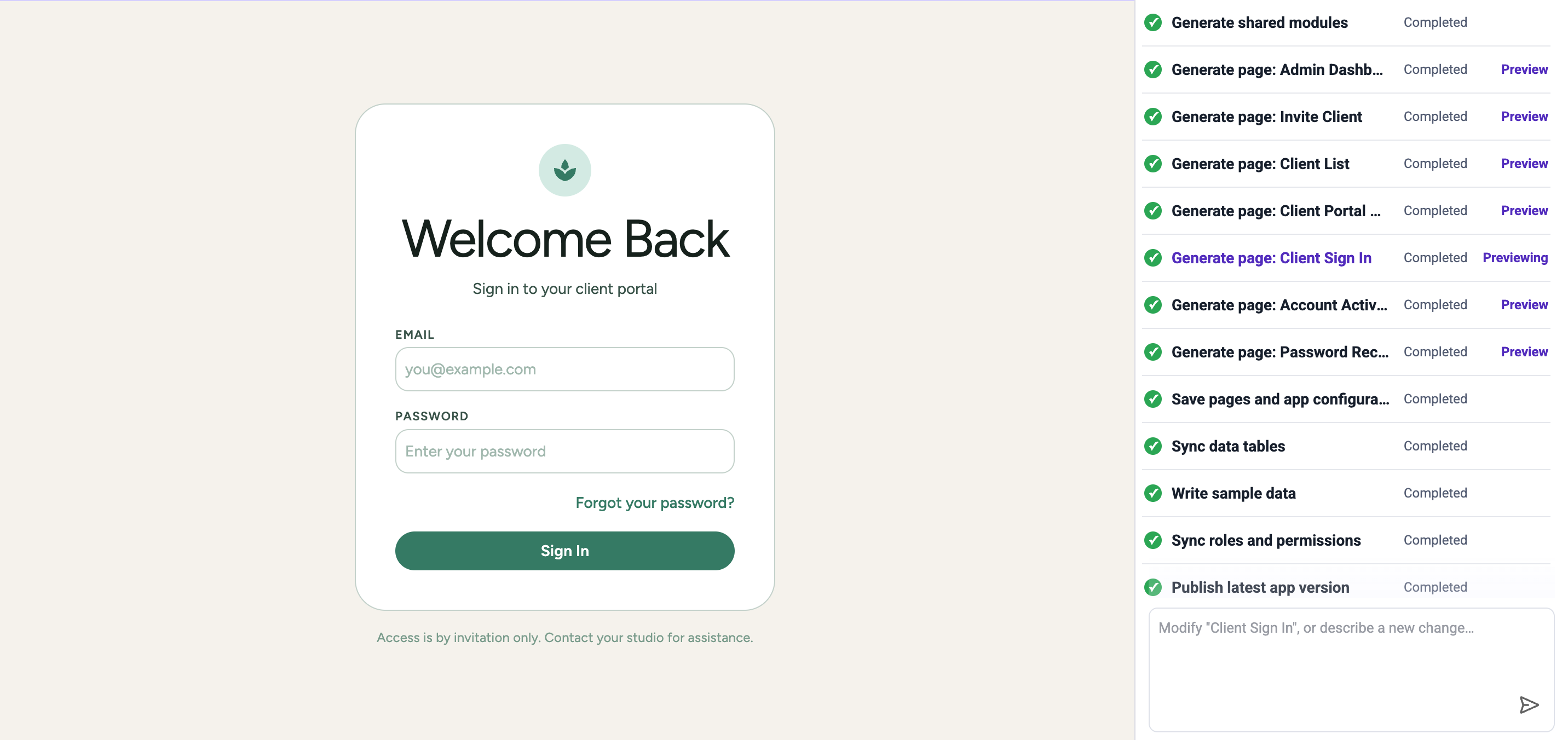
For a focused brief, the first version can be ready in a few minutes.
05 · Step 5
What should you know about test and Publish Your Portal?
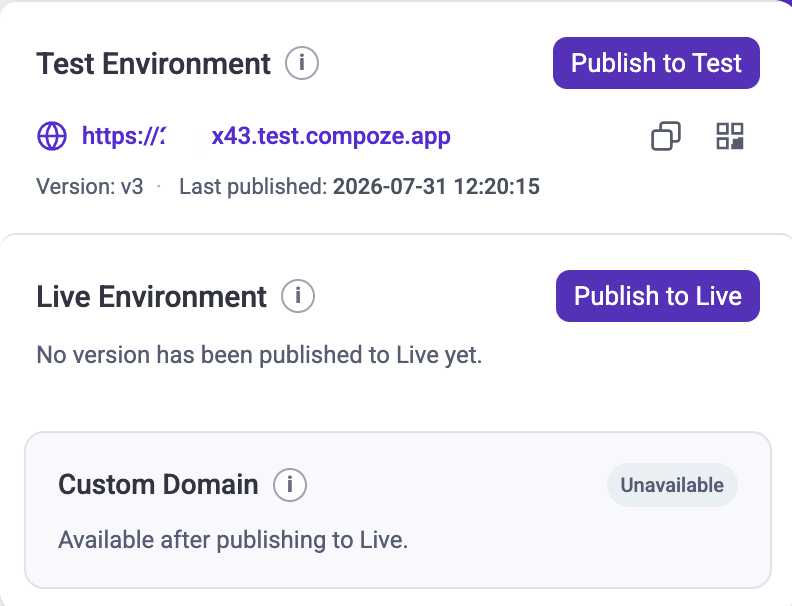
Open the test URL and work through the journey as each role.
- Check the invitation and sign-in experience, including expired access.
- Verify every role against the permission matrix from Part 1.
- Test empty states, long text, mobile actions and validation errors.
- Confirm that each client action creates the expected team response.
If testing reveals an issue, describe the expected result in the editor chat and let the AI adjust the app. Retest until the workflow passes, then publish the portal to its live URL and connect your custom domain, such as portal.yourcompany.com.
06 · After launch
What should you know about add Features with AI?
Return to the Component.app editor whenever you need another client action, internal page, role, automation or integration. Explain the change to the AI, test the updated workflow, and publish the approved version to the existing portal.
07 · Component.app
What should you know about from Brief to Live Portal?
Build the First Version with Component.app AI
08 · FAQ
What Else Do Businesses Ask?
Can AI build the database and permissions for a client portal?+
Component.app AI can generate the data model, authentication, user roles, permissions, interfaces and workflow logic from an agreed brief. You should still test every role and important access boundary before launch.
How quickly can I get the first version?+
A focused first version can be generated in a few minutes after the requirements and build plan are confirmed. Testing, data migration, integrations and production preparation depend on the workflow's complexity.
What if the generated portal is not correct?+
Describe what happened, which user was affected and the expected result in the editor conversation. The AI can adjust the UI, data, permissions or workflow logic, after which you can retest the updated version.
Can I test the portal before publishing it?+
Yes. Component.app provides a private test URL so you can validate the journey, roles, permissions and edge cases before publishing the live URL.
Can the live portal use my own domain?+
Yes. After the portal is approved and published, you can connect a custom domain such as portal.yourcompany.com for a branded client experience.
Can I add features after launch?+
Yes. Return to the Component.app editor, explain the new workflow or feature to the AI, review the proposed changes, test the updated version and publish it to the existing portal.
Continue reading
Which related guide should you read next?